Free Antivirus for Windows 11
Windows 11 includes important security controls, but effective protection is a maintained combination of updates, active malware defense, safer browsing, protected accounts, and recoverable backups. This guide explains how to evaluate free and paid antivirus options for Windows 11 without promising that any product blocks every threat.
Published: 2026-09-19 · Updated: 2026-09-19 · Bitdefender Authorized Partner
Windows 11 security is layered
Windows Update addresses weaknesses in the operating system and applications. Windows Security provides built-in controls that may include Microsoft Defender Antivirus, firewall settings, reputation-based protection, and device security features. A compatible third-party product can add controls or management that some users need, but it should be installed as one primary real-time protection product rather than stacked with another active antivirus.
No security tool decides whether an unexpected message is honest. A fake delivery notice can steal a password without installing malware, and a remote-support scam can cause harm if a user grants access. Combine device protection with unique passwords, multi-factor authentication, careful downloads, and independent backups.
- Keep Windows, browsers, and applications current
- Review Windows Security directly from Settings
- Use one compatible real-time protection product
- Protect important accounts and backups
Microsoft Defender and third-party antivirus
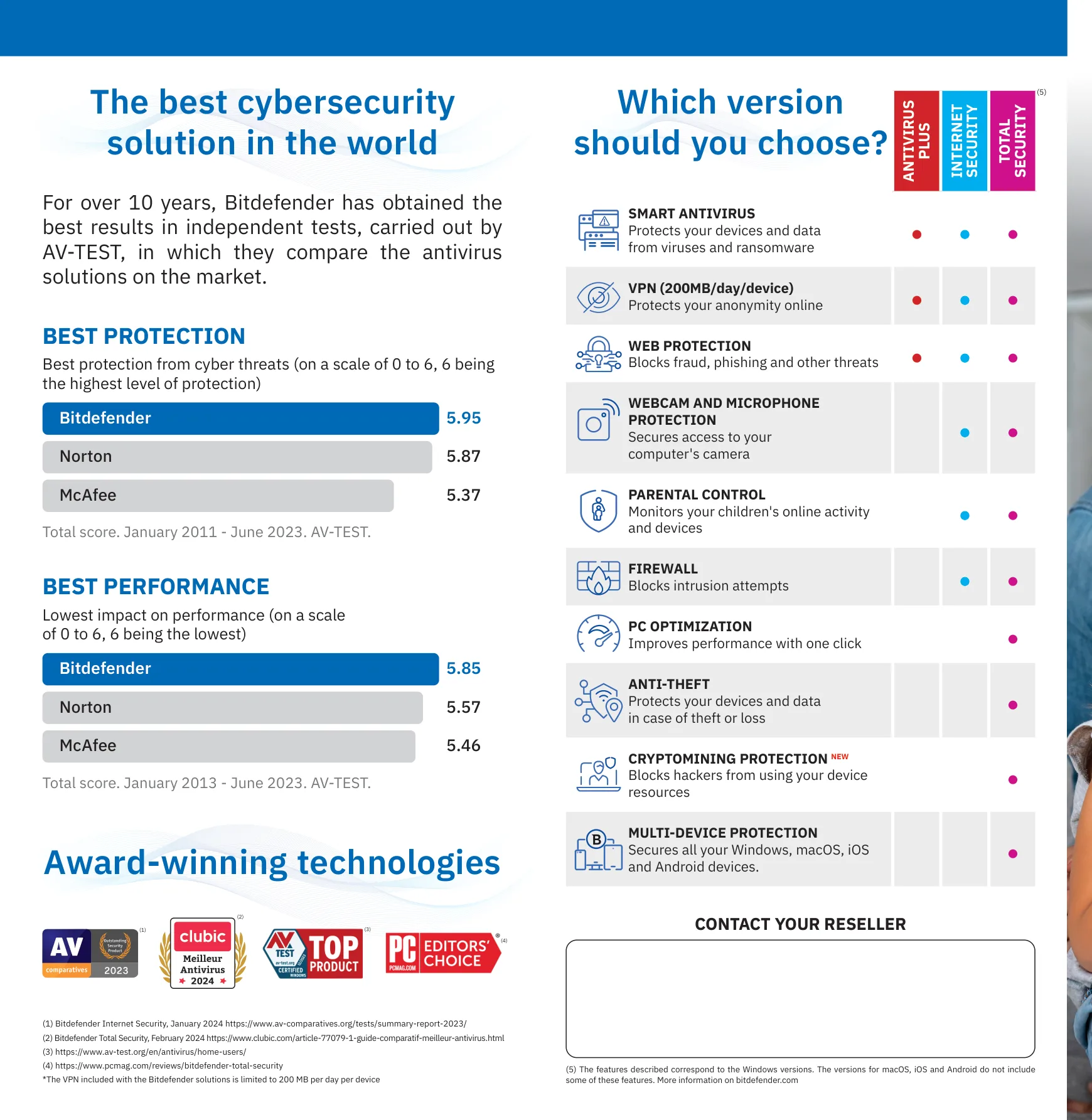
Microsoft Defender is part of the Windows security baseline and may be sufficient for some people who keep Windows current, use careful download habits, and do not need broader controls. A third-party antivirus plan may be useful when you need cross-device coverage, family management, additional web or privacy features, or help with installation and account management.
Compare actual features and terms rather than treating one label as universally better. Check supported editions, device limits, resource use, renewal behavior, and the product’s support route. If you install another real-time product, understand which Windows protections change and follow the vendor’s supported setup instructions.
- Compare support and management, not only detection claims
- Check compatibility with Windows 11 editions and hardware
- Review device count and renewal conditions
- Do not disable safeguards just to run an unknown installer
Malware, ransomware, phishing, and real-time scanning
Real-time scanning can inspect files and processes as they open. Malware protection may block suspicious programs, while ransomware controls can limit unauthorized changes to important folders. Web and phishing protection can warn about known dangerous pages. Each layer has limits: a new threat may not be recognized immediately, and a convincing login page can still fool a person.
Use backups as a recovery control, not as a replacement for prevention. Keep a separate or versioned copy of important files and test restoring one. If Windows 11 shows repeated redirects, an unknown administrator, disabled protection, unexplained encryption, or unfamiliar account activity, stop using sensitive accounts on the device and investigate from a trusted device.
- Leave real-time protection enabled
- Run full scans when alerts or symptoms justify them
- Use ransomware-aware backups
- Verify links and sign-in pages independently
How to install and scan Windows 11 safely
Before installing, save work, update Windows, and check whether another antivirus is active. Download from the official product or account page. Follow the installer, allow required permissions, restart if requested, and open the dashboard. Confirm the intended product, protection status, device assignment, and expiry date before assuming the setup is complete.
For a scan, open Windows Security or the known security application yourself rather than clicking a browser alert. Review protection updates, choose the scan recommended for the situation, and read the result. Quarantine detections through the product. Do not delete system files by filename or download a cleaner offered by a scare message.
- Use official downloads and supported removal steps
- Verify the dashboard after setup
- Run a trusted full scan when needed
- Record the detection and exact warning if help is required
Keeping a Windows 11 PC protected
A monthly review can cover updates, active protection, browser extensions, account recovery methods, and backups. Use a standard account for everyday work when practical. Secure the home router, use a screen lock, and remove applications you no longer need. When a PC is shared, give each person a separate account and a clear way to report a suspicious pop-up.
Review the license or trial before it expires. Count devices again if the household has changed. If the computer belongs to work or school, contact its IT team before installing consumer security software or changing managed settings. The safest Windows 11 plan is one that remains understandable after checkout and easy to verify during an incident.
Pros
- Windows 11 provides a meaningful built-in security baseline
- Additional plans can support cross-device and family needs
- Layered controls address files, websites, accounts, and recovery
- Official dashboards make status and expiry easier to verify
Cons and limitations
- No tool blocks every scam, phishing page, or new threat
- Features depend on the Windows edition and product plan
- Competing real-time protection can create conflicts
- Security requires updates, account habits, and backups
What to do
- Update Windows and applications
- Review Windows Security directly
- Choose one primary real-time protection product
- Secure accounts with unique passwords and MFA
- Keep and test an independent backup
What to avoid
- Pirated software and unauthorized activation tools
- Fake virus warnings and unsolicited support numbers
- Permanent security disablement
- Manual deletion of unknown system files
- Entering passwords on a device under active suspicion
Help and support
Contact support when protection will not stay enabled, activation fails, or a device is repeatedly compromised.
For work or school devices, use the organization’s incident process. For possible financial exposure, contact the bank from a separate trusted device.
Frequently asked questions
Does Windows 11 need antivirus software?
Windows 11 includes important built-in protection, but the right choice depends on how the device is used, the household’s other devices, and whether additional management or support is needed.
Is free antivirus enough for Windows 11?
It can provide a useful baseline for some users. Compare the exact features, device limits, support, and maintenance requirements before deciding.
How do I scan Windows 11 for malware?
Open Windows Security or your trusted security application directly, update protection, run the recommended scan, and follow the quarantine or remediation guidance.
Can antivirus protect Windows 11 from phishing?
It may warn about known dangerous sites, but phishing also targets judgment and credentials. Verify unexpected messages and use MFA in addition to device protection.
Final thoughts
Choose a protection option you can verify, install, maintain, and explain to the people who use the device. Review the exact product, device coverage, term, and support route before checkout. Legitimate antivirus reduces risk, but it works best alongside updates, strong account security, careful browsing, and backups that can actually be restored.
Protect Your Windows PC
Review current Bitdefender options by supported devices, protection features, license terms, and available support.
Protect Your Windows PC