Best Practices for Antivirus Protection on Windows 11
Windows 11 security works best as a maintained set of layers rather than a single app. Updates, Windows Security, a compatible antivirus product, safer accounts, careful downloads, and recoverable backups all contribute to the result. This guide gives a practical routine for protecting a Windows 11 computer without overstating what any product can guarantee.
Published: 2026-09-19 · Updated: 2026-09-19 · Published by IZenica Technologies LLC
Start with the Windows 11 security baseline
Windows 11 includes security features through Windows Security, Microsoft Defender Antivirus, the firewall, reputation-based protection, and device security settings. Keep them enabled and review the status directly from Settings. If a compatible third-party product becomes the primary real-time antivirus, follow its supported setup instructions and understand which Windows controls remain active.
Do not install two competing real-time antivirus products and assume that more icons mean more protection. They can interfere with scans, notifications, and updates. Choose one clear owner for real-time protection, then keep the operating system, browser, drivers, and applications current through trusted update paths.
- Install pending Windows updates
- Review Windows Security directly
- Use one primary real-time protection product
- Keep the firewall and reputation controls enabled
Decide whether a third-party antivirus fits
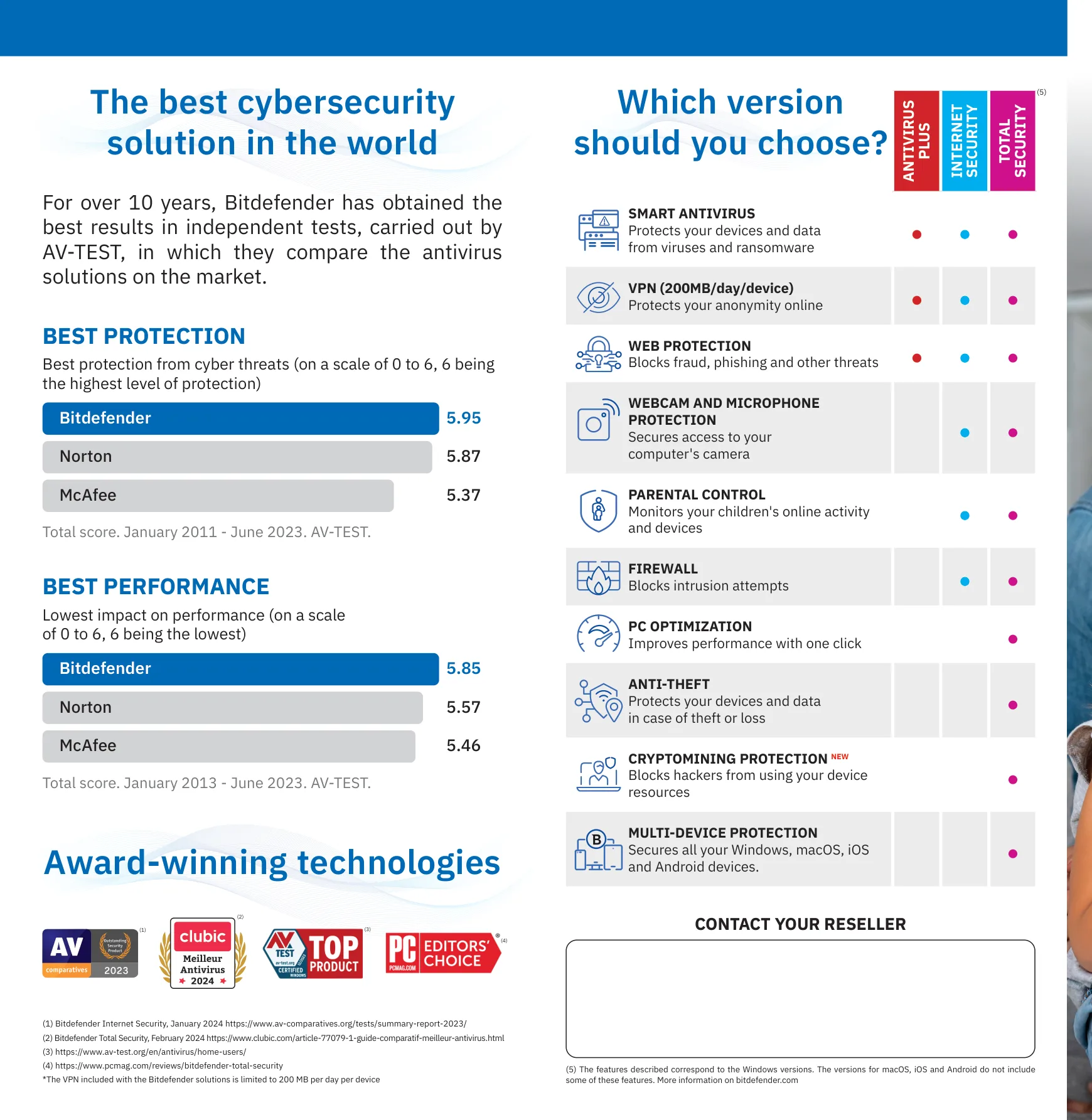
Microsoft Defender may be a suitable baseline for someone who maintains Windows, downloads carefully, and does not need broader device management. A third-party plan can be useful when you want cross-device coverage, family controls, additional web or privacy features, or help with installation and account administration. Neither category is automatically correct for every household.
Compare the exact plan. Check supported Windows editions, device count, feature availability, resource use, renewal behavior, and support. Count computers, phones, and tablets before deciding. If a product is for work or school hardware, follow the organization’s policy instead of changing managed security settings.
Use real-time scanning and on-demand scans correctly
Real-time scanning can inspect files and processes as they are opened or started. On-demand scans are useful for a baseline, after a suspicious download, or when the product recommends a deeper review. Update security intelligence before scanning and read the result instead of dismissing it because the computer still appears usable.
A filename or browser warning is not enough to identify a threat. Quarantine through the security application and keep the detection name if support is needed. Do not download a “cleaner” offered by a pop-up, manually delete a system file, or restore a quarantined item without checking its source and purpose.
- Keep real-time protection enabled
- Update before a full scan
- Use quarantine and remediation controls
- Record alerts that need support
Protect Windows 11 from malware and ransomware
Malware can arrive through attachments, bundled installers, compromised sites, removable media, or stolen credentials. Use standard accounts for ordinary work when practical, limit browser extensions, and verify downloads through the publisher’s known site. Keep macros, scripts, and remote-access tools under control rather than enabling them because a document or caller demands it.
Ransomware protection is also a recovery problem. Keep important files in a backup arrangement that can be restored independently of the affected PC, and test a restoration. Synchronization is useful but may copy encryption or deletion. If files begin changing unexpectedly, disconnect the computer when practical, avoid signing in on it, and seek qualified help.
Treat phishing as an account problem too
Antivirus and browser protection may warn about known dangerous destinations, but a convincing phishing message can still lead to a fake login page. Inspect the sender, domain, request, and urgency independently. Open the known service address yourself instead of using an unexpected link, and use multi-factor authentication for important accounts.
If a password was entered into a suspicious page, use a separate trusted device to change it and review active sessions. Change reused passwords on other services. A clean Windows scan does not undo a credential exposure, and a security product cannot decide whether an urgent invoice or delivery message is honest.
Install and activate protection safely
Download an antivirus product from the official vendor or authorized account. Before installing, save work, update Windows, and check whether another real-time product needs to be removed through supported instructions. After setup, open the dashboard and confirm the product name, account, device assignment, protection state, and expiry date.
Activation failure is often an account, product-edition, device-limit, or compatibility issue. Record the exact message and contact official support if it repeats. Never use a key generator or bypass tool. Those shortcuts can expose the computer to malware and leave the license without updates or a legitimate support route.
A Windows 11 maintenance routine
Once a month, review Windows Update, application updates, real-time protection, browser extensions, account recovery methods, and backups. Remove software you no longer need. Check the security dashboard after a major operating-system update, a new device, or a product renewal. Make sure family members know how to report a suspicious pop-up without calling the number shown on screen.
Keep a private record of the product, covered devices, account email, support route, and expiry date. This makes replacement and renewal easier. If a device is managed by work or school, use its incident process. Consumer software can conflict with centralized policies when installed without approval.
Windows 11 protection checklist
A good Windows 11 setup is easy to verify: updates are current, one real-time product is active, the firewall and reputation controls are not silently disabled, accounts use strong authentication, and important files can be restored. The checklist should be reviewed after changes rather than completed once and forgotten.
No antivirus can guarantee that every link, file, or account action is safe. Combine product protection with careful decisions and a recovery plan. If repeated redirects, an unfamiliar administrator, disabled security, unexplained encryption, or unusual account activity appears, stop entering sensitive information and seek help from a trusted device.
- Windows and applications are current
- One compatible real-time product is active
- Scans and alerts are reviewed
- Accounts use unique passwords and MFA
- Backups are separate and tested
- Support routes are known before an incident
Questions customers often ask
- Does Windows 11 need antivirus software?
- Windows 11 includes important built-in protection. The right choice depends on device use, household coverage, support needs, and whether additional features provide real value.
- How do I scan Windows 11 for malware?
- Open Windows Security or your known security application directly, update protection, run the recommended scan, and follow the product’s quarantine or remediation guidance.
- Can antivirus stop ransomware?
- It may detect or block some malicious behavior, but no product removes the need for careful downloads and independent, tested backups.
- How do I protect Windows 11 from phishing?
- Verify unexpected messages independently, inspect domains, use known sign-in addresses, and protect accounts with MFA in addition to browser and antivirus warnings.
Related Windows 11 Antivirus Protection Best Practices Articles
View all Bitdefender guides · Choose Windows 11 antivirus protection · Read the Windows security guide · Install antivirus on Windows 11 · Review malware protection · Use the buying checklist