Online Security Guide
Online security combines device protection, account habits, privacy choices, and skepticism about unexpected requests. Use these guides to make safer decisions without fear-based claims.
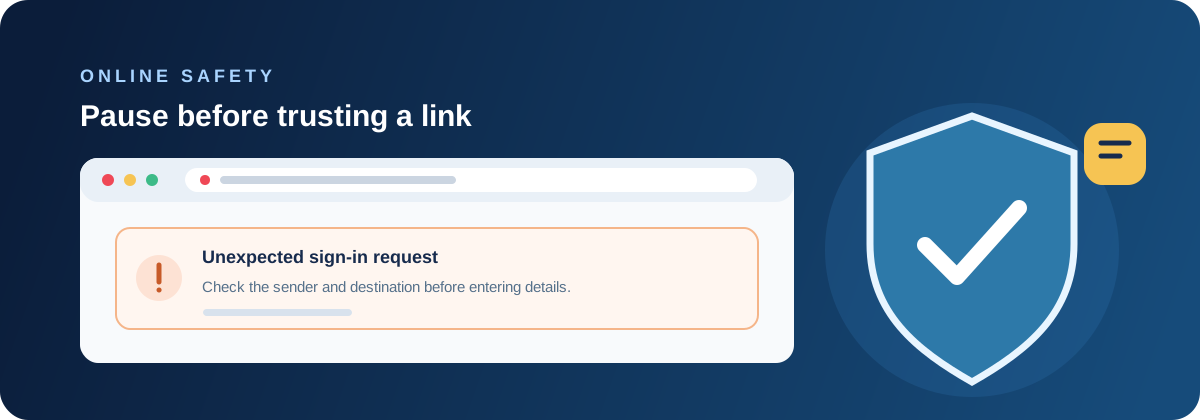
Online Security Guide: How to Protect Yourself From Common Cyber Threats
Learn how to reduce phishing, unsafe downloads, fake websites, account compromise, and other common online security risks.
Read the complete guide
What online security includes
Online security is the set of habits and controls that protect your devices, accounts, identity, money, and privacy while you use the internet. It includes more than antivirus. Phishing may steal a password without installing software, a reused password can expose several accounts, and a fake website can look professional while collecting payment information. Secure browsing therefore combines technology with verification and good recovery habits.
The aim is not to be afraid of every message. It is to make unexpected requests harder to act on impulsively. Use unique passwords and multi-factor authentication, keep devices and browsers updated, verify important requests through a separate channel, and limit the information you share. When something goes wrong, have a plan for sessions, passwords, bank contact, and trusted support.
- Phishing and fake login pages
- Unsafe downloads and deceptive pop-ups
- Password reuse and account takeover
- Public Wi-Fi and home router risks
- Oversharing, tracking, and identity theft
Recognizing phishing and fake urgency
Phishing messages try to make a recipient click, sign in, pay, or disclose information. The message may imitate a bank, delivery company, employer, streaming service, or friend. Look for urgency, unusual payment requests, mismatched sender details, unexpected attachments, shortened links, and requests to bypass a normal process. A familiar logo or a secure padlock does not prove that the request is legitimate.
Verify important requests outside the message. Open a saved bookmark, type the official address, use the company’s known app, or call a number from a statement rather than the message. If a colleague requests a payment change, confirm through a second channel. A short pause is a security control because it separates the request from the pressure designed to make you act quickly.
Protecting accounts and personal information
Use a unique long password or passphrase for every important account and store it in a reputable password manager if that fits your routine. Enable multi-factor authentication, preferably with an authenticator app or security key where available. Review recovery email addresses, phone numbers, active sessions, connected applications, and forwarding rules. An account can remain compromised even after its password is changed if an attacker has a persistent session or recovery method.
Share less information than a form requests when the extra detail is not necessary. Check privacy settings, remove old applications, and be cautious with browser extensions that can read browsing activity. Use a screen lock and device encryption where supported. Protecting identity is not only about secrecy; it is also about limiting how much data an attacker can combine into a convincing impersonation.
Pros and limitations of online security tools
Password managers, MFA, browser warnings, antivirus, spam filters, encrypted connections, credit monitoring, and router security each reduce a different type of risk. Together they make account takeover, malicious downloads, and casual interception harder. Automatic updates and security alerts can handle routine work without requiring a person to inspect every technical detail.
Tools have limits and can create false confidence. MFA may not stop a stolen session, a VPN does not make a phishing site trustworthy, and a privacy setting cannot undo information already posted publicly. A browser warning may be bypassed, and a security app cannot approve a suspicious payment request for you. Use tools to support judgment, not to replace it.
What to do after clicking a suspicious link
If you clicked but did not enter information or download anything, close the page, update the browser and security tools, and monitor the account involved. If you entered a password, change it immediately from a trusted device, then change any other account where it was reused. Revoke unfamiliar sessions, review MFA methods and forwarding rules, and watch for follow-up messages.
If payment or identity information was entered, contact the bank or service provider through an official channel. Save the message and URL for reporting, but do not revisit the site unnecessarily. Run a trusted scan if a file was downloaded or a program ran. Tell work or school IT when the account or device is managed by them. Fast, calm action limits the attacker’s time.
Safer networks and everyday browsing
Secure a home router with a unique administrator password, current firmware, modern Wi-Fi encryption, and a guest network for visitors or untrusted smart devices. On public Wi-Fi, confirm the network name, avoid sensitive activity when practical, and use mobile data when the venue’s network is uncertain. Keep devices locked when you leave them and disable connections you do not need.
Download software from official publishers and remove unused extensions and applications. Do not enable macros, “support tools,” or browser permissions merely because a document or website demands it. Treat search advertisements and social media messages as possible paths to a fake site. The safest browser habit is to navigate to important services directly rather than following an unexpected link.
Pros
- Layered controls protect accounts, devices, and identity together
- MFA and password uniqueness limit password reuse damage
- Verification habits stop many scams before a tool is needed
- Recovery planning reduces the impact of a mistake
Cons and limitations
- No tool can verify every request or honest-looking website
- Security settings require periodic review
- A stolen session may survive a password change
- Privacy and security choices can be inconvenient
What to do
- Use unique passwords and MFA
- Verify unexpected requests through a separate channel
- Keep browsers, devices, routers, and apps current
- Review active sessions and connected applications
- Use official bookmarks for banking and security accounts
- Report scams and protect accounts quickly after a mistake
What to avoid
- Do not trust urgency, logos, or a padlock by themselves
- Do not reuse a password across important accounts
- Do not call numbers in pop-ups or suspicious messages
- Do not grant browser extensions unnecessary permissions
- Do not overshare personal information on public forms
When to get help
Contact your bank immediately through its official number when payment information may be exposed. Contact work or school IT for managed accounts and use official platform support for account recovery.
If you are unsure whether a message is real, stop interacting with it and ask through a known channel. Save the message details without forwarding malicious links to other people.
Frequently asked questions
What is the first rule of online security?
Pause and verify unexpected requests through a separate trusted channel before clicking, signing in, paying, or sharing information.
Is a VPN enough to stay safe online?
No. A VPN can protect some network traffic, but it does not make phishing pages, unsafe downloads, weak passwords, or dishonest requests safe.
What should I do after clicking a phishing link?
Close the page, change any exposed password from a trusted device, revoke unfamiliar sessions, contact your bank if needed, and report the message.
How can I protect my identity?
Use unique passwords and MFA, share less personal information, review account recovery details, secure devices, and monitor important account activity.
Final thoughts
Online security is the practice of making risky actions harder to perform accidentally. Strong accounts, current devices, trusted navigation, and a pause before responding handle many common threats.
You do not need to understand every technical detail to be safer. You need a repeatable process: verify, limit access, protect accounts, and ask for help through known official channels.
Related Online Security Articles
Compare protection options
After reviewing the educational guidance, compare current Bitdefender products by supported platform, device count, term, and included features.
Compare Bitdefender plans